One core · two interfaces · self-hosted

One AI.
Two ways to run it.

Confab is a small family of AI tools built around the same idea: your models, your keys, your machine. Pick a native macOS app or Jarvis — a self-hosted agent with full tool access. Nothing routes through us, nothing leaves your infrastructure.

Native macOS App
Confab for Mac

Confab for Mac

Every AI, one interface. Confab connects OpenAI, Anthropic, OpenRouter, Google, and local Ollama models into a single, beautifully native macOS experience — with smart memory, file access, and Git sync built in.

v2.3.5 ·macOS 14+ ·Native Swift ·AGPL-3.0
Confab — New Conversation
> /model claude-sonnet-5
> /mcp add ~/Projects
> /online on

Model, files & web search ready.
You> Summarize this repo and open a PR
Multi-Provider Intelligence

OpenAI, Anthropic, OpenRouter (300+ models), Gemini, and local Ollama — switch with one shortcut, no context lost.

Smart Memory

Cut token costs 50–80% with intelligent context selection, message starring, and progressive summarization.

File Access via MCP

Grant read (and optionally write) access to specific folders. Ask questions about your own code and documents.

Bash Execution

Let the AI run shell commands via /bin/zsh, opt-in with a per-command or session-wide approval gate.

Git Sync

Conversations export as Markdown and push to your Git repo automatically — free backup, zero infrastructure.

iCloud Backup

One-click backup of settings to iCloud Drive. API keys are excluded and must be re-entered after restore.

View Confab on gitlab.pm →

Self-Hosted Agent
Jarvis

Jarvis

A self-hosted personal AI agent that runs entirely on your own hardware. Connect OpenRouter, Claude, or OpenAI models to your calendar, email, files, and the web — with every permission under your explicit control.

Docker ·PostgreSQL + pgvector ·Self-hosted

Up and running in minutes

01
Get the files

Copy docker-compose.example.yml, .env.example, SOUL.md.example, and USER.md.example into a server directory and drop the .example suffix.

02
Create the data directory

mkdir -p data — this is where Jarvis persists its database and files.

03
Configure the environment

Edit .env and fill in the required (*) values: a master password for the credential store, the database connection strings, and an MCP key generated with openssl rand -hex 32.

04
Pull and start

One command pulls the images and starts Jarvis and PostgreSQL.

View Jarvis on gitlab.pm →

Jarvis/
# get the files
$ cp docker-compose.example.yml docker-compose.yml
$ cp .env.example .env
$ cp SOUL.md.example SOUL.md
$ cp USER.md.example USER.md
$ mkdir -p data

# fill in .env, then:
$ docker compose pull
$ docker compose up -d

open http://<server-ip>:8080
Real-time AI Chat

WebSocket streaming with full tool-call visibility. Watch Jarvis reason and act, switch models mid-conversation.

Calendar & Email

Read/write events via CalDAV, manage inbox via IMAP/SMTP — zero data leaving your server.

Sandboxed File Access

Read, create, and edit files within explicit directory boundaries you declare.

2nd Brain

PostgreSQL + pgvector knowledge base. Capture thoughts, search by meaning, build long-term memory.

Custom Agents

Goal-oriented agents with their own tools, models, and cron schedules. Can spawn sub-agents.

Security First

Prompt injection screening, canary tokens, append-only audit log, explicit confirmation on destructive actions.

Interface

See it in action

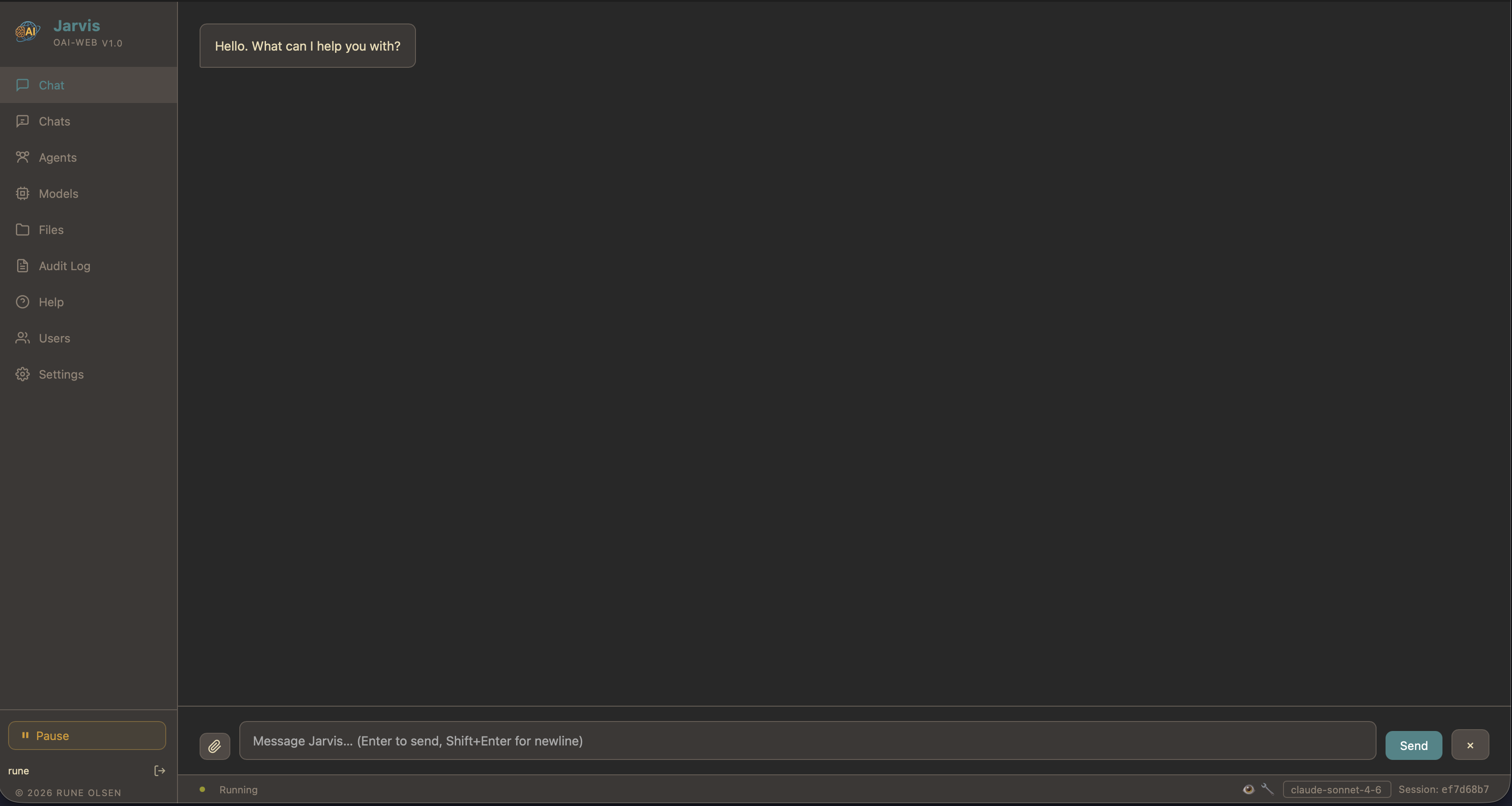
localhost:8080/chat
Jarvis Chat Interface
01

Real-time Chat Interface

Stream responses from Claude or any OpenAI-compatible model. See tool calls as they happen, confirm or deny actions inline, and switch models per conversation.

Get in Touch

Contact

Questions, bug reports, or feature ideas — send a message and we’ll get back to you.